# Members/ Members List
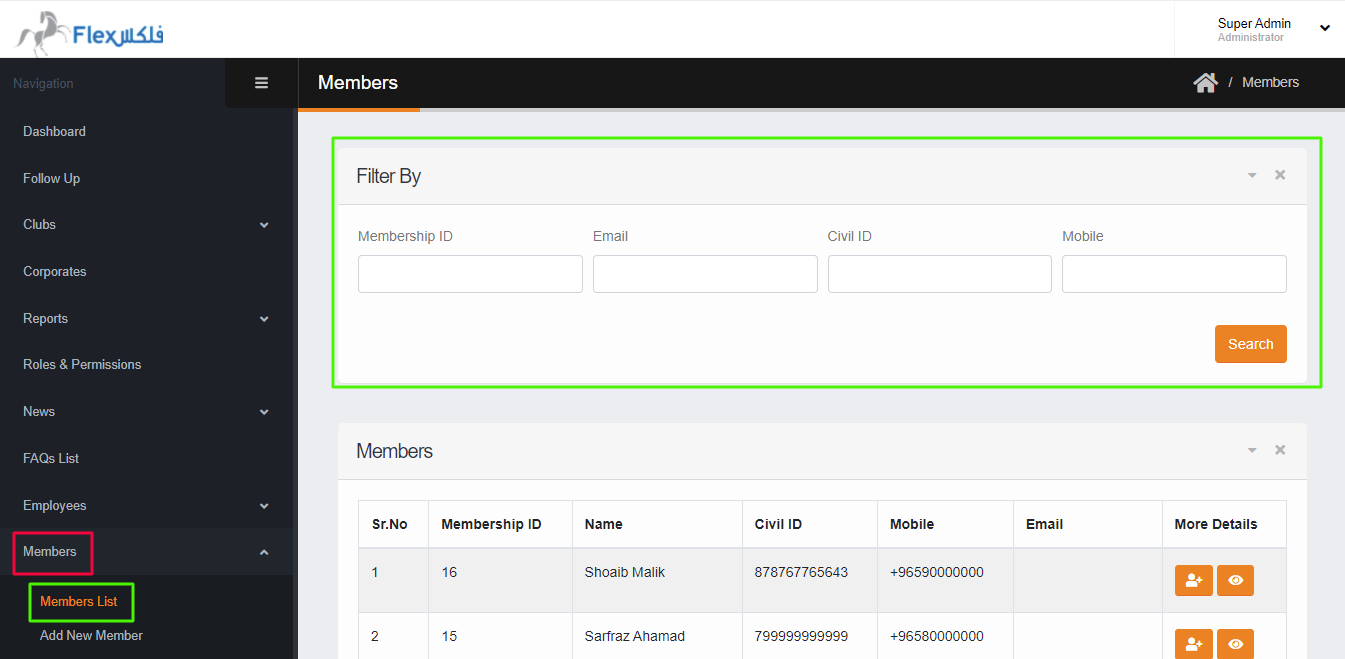
- In this section, members can be searched by **Membership ID**, search by **Email,** search by **CIVIL ID**, search by **Mobile Number**. Also, you can ADD manual **CHECK-IN** against the member.
[](https://flex.doc.exodevs.com/uploads/images/gallery/2022-05/member-list.png)[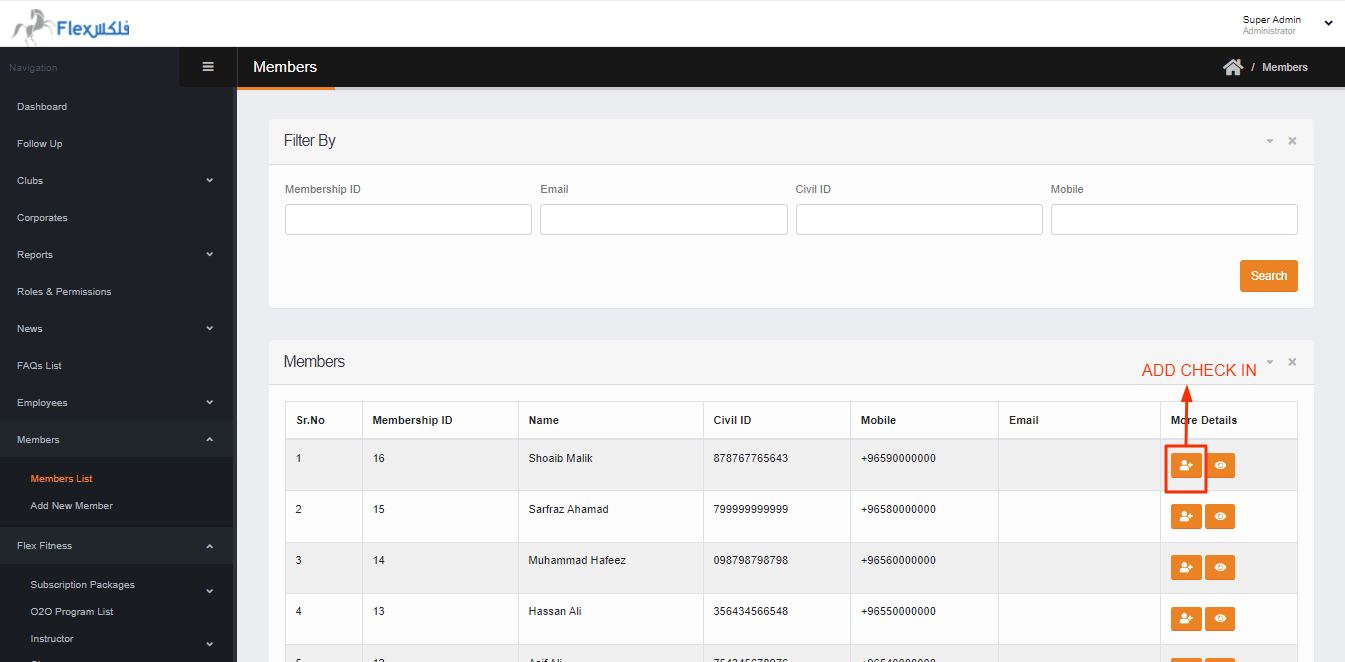](https://flex.doc.exodevs.com/uploads/images/gallery/2022-05/add-check-in.png)
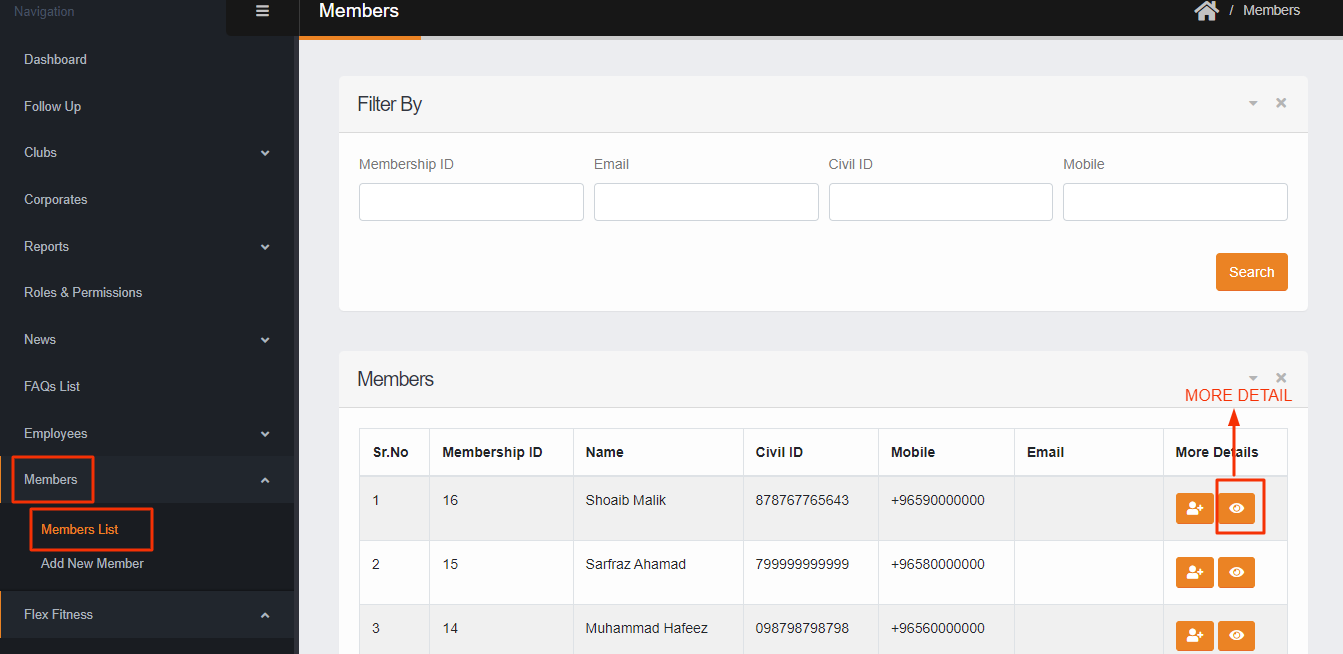
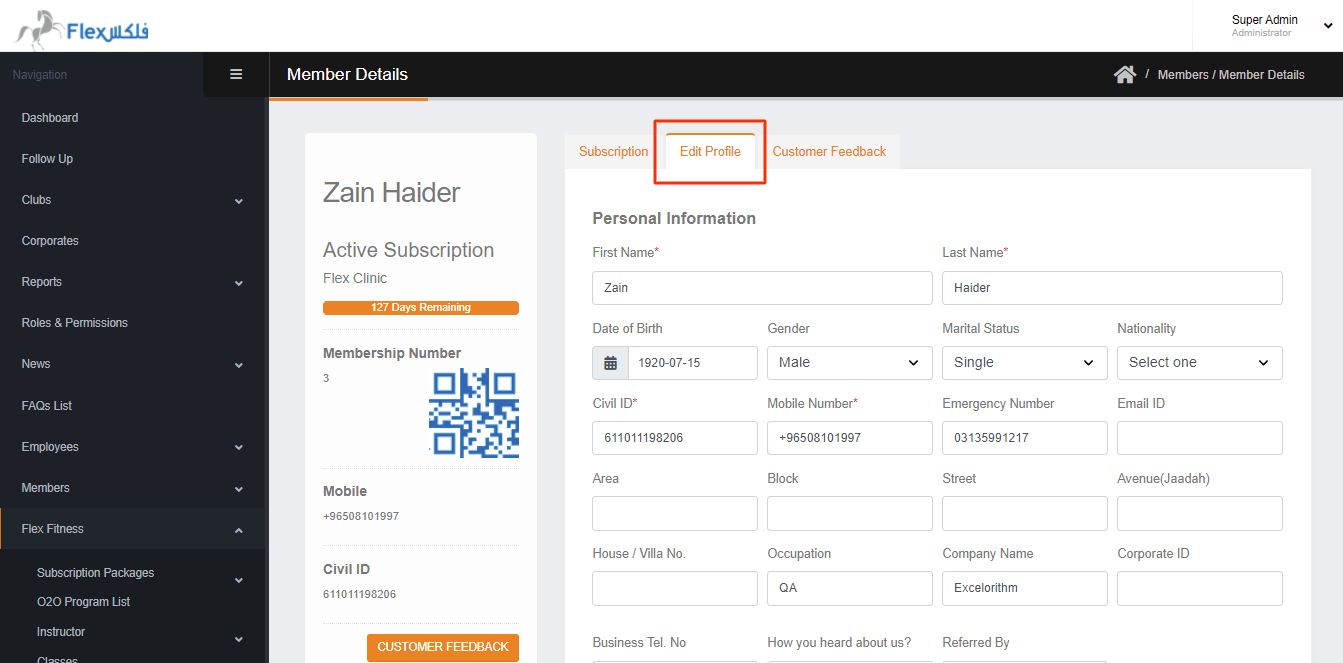
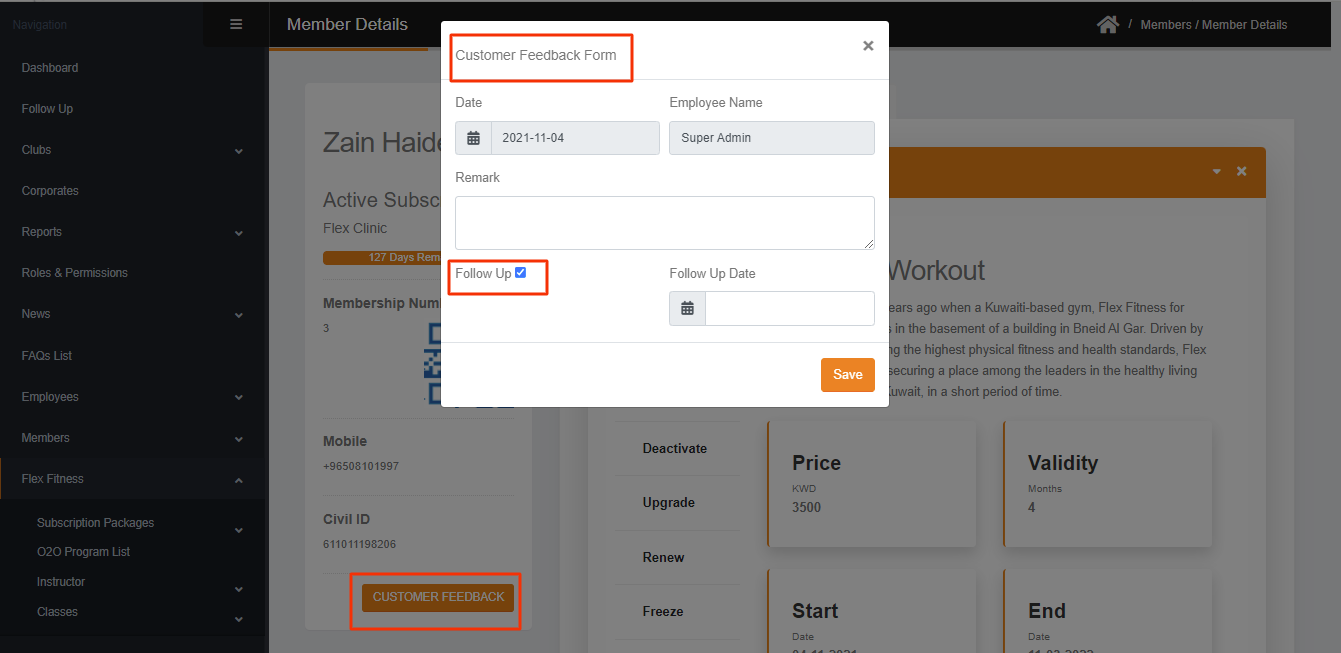
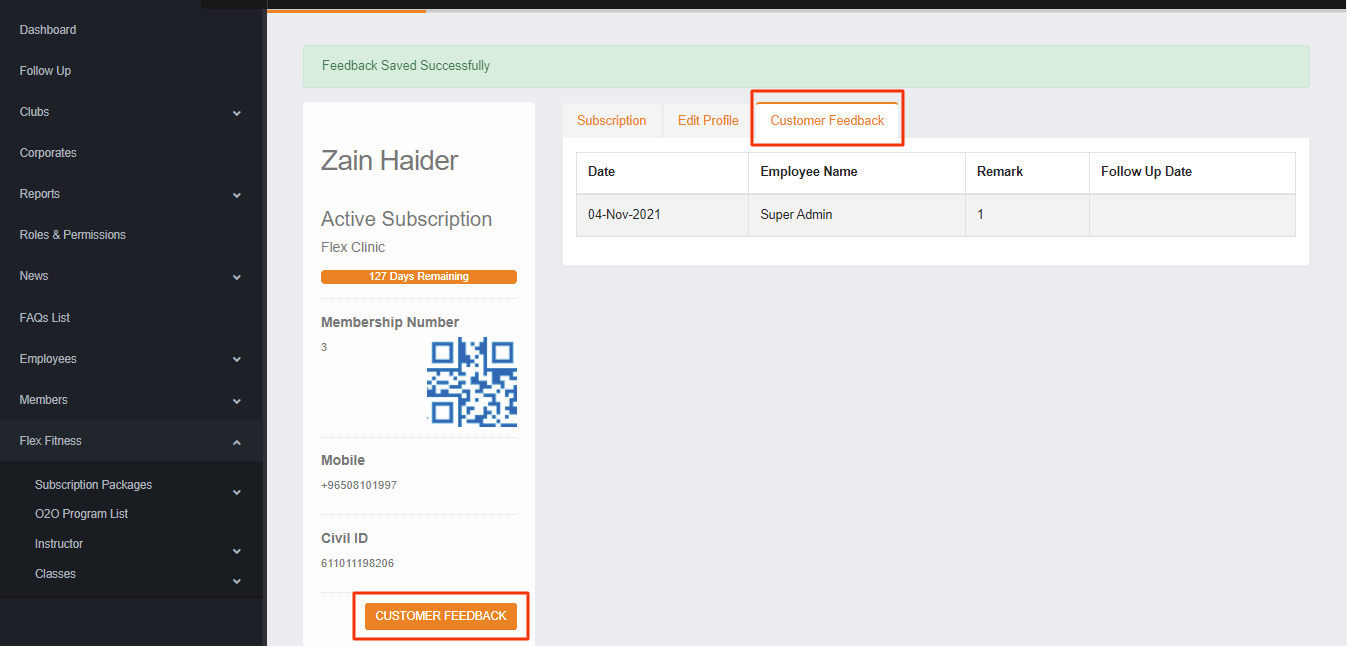
- Member can be edited by clicking on Member **More Detail** also you can add the member **check-in** In **More Detail** you can edit the **Member Profile**, **Add customer feedback**, **Add follow-up** against the member. In **Member Details** you can check the package **Remaining Days** for the member, also you can check the **Membership ID**, **QR**, **Mobile Number** & **Civil ID**.
[](https://flex.doc.exodevs.com/uploads/images/gallery/2022-05/more-detail.png)
[](https://flex.doc.exodevs.com/uploads/images/gallery/2022-05/edit-profile.png)
[](https://flex.doc.exodevs.com/uploads/images/gallery/2022-05/customer-feedback.png)
[](https://flex.doc.exodevs.com/uploads/images/gallery/2022-05/customer-feedback-1.png)
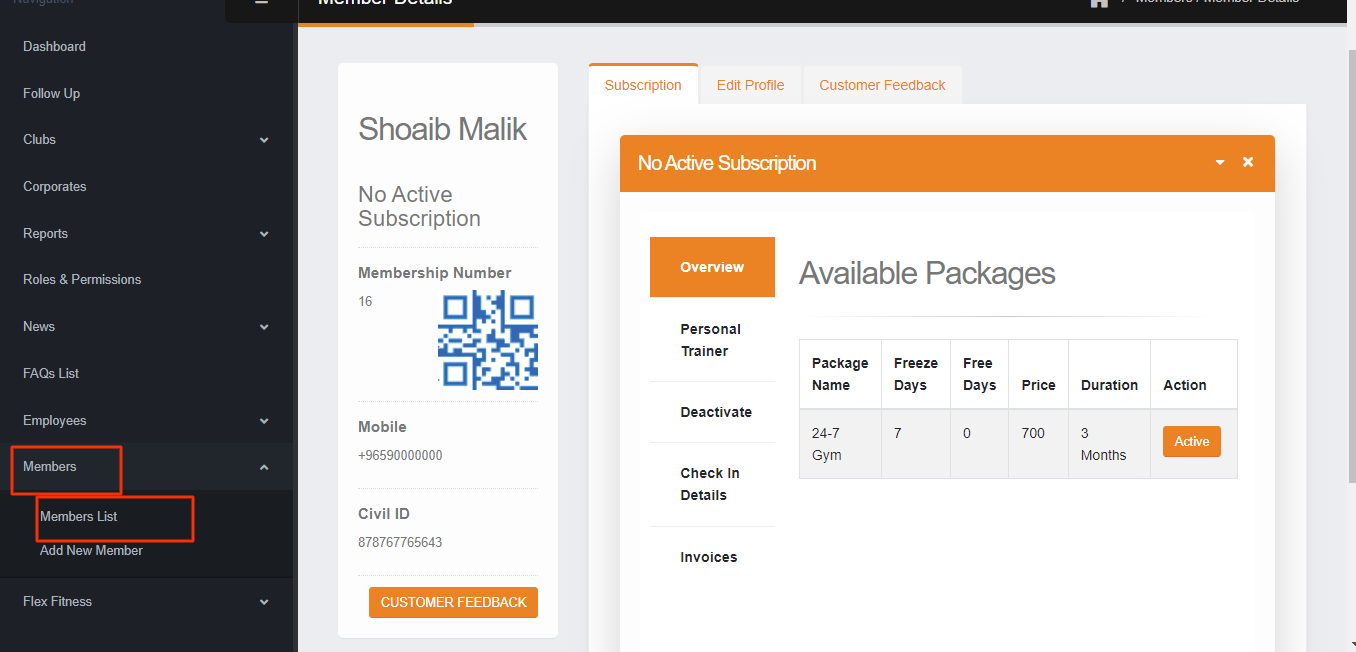
- In More Detail, we have **Overview** about the member where we See detail related to the member subscribed package. In **Overview** section, when user subscribe the package from **Mobile or website** it will be activated when member **check-in** or it will be automatically activated on the **30th day** after the subscription. Except this the package will not activated and it will show under the **Overview** section.
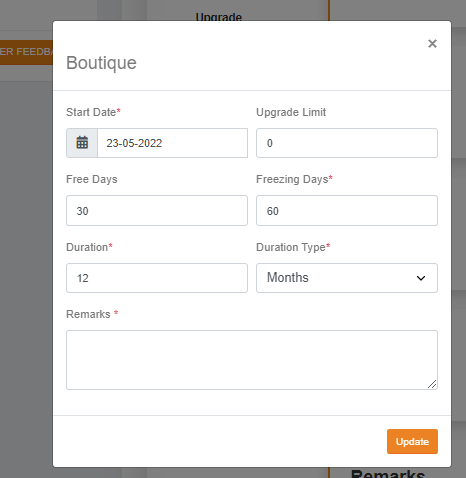
Also in this section, You can Edit the following fields from the subscribe package against the member.
1. **Start date:** if you Edit the **start date** from the previous dates, the package will expire, and if you select the **start date** from upcoming day the package will start on the selected date.
2. **Upgrade Limit:**
3. **Free days : **When you add the free days, it will be add in the package and it will effect on the specific member only. **
**4. **Freezing Days:** When you Edit the freezing days, it will increase or decrease the freezing limit against the specific member.
5. **Duration:** when you Edit the Duration, it will increase or decrease the expiry of the package.
6. **Duration Type:** When you Edit the duration Type, it will change the package duration i.e. Month to days or vice versa.
7. **Remarks:** In this section those who edit the package detail and why the package edited can give the remarks.
[](https://flex.doc.exodevs.com/uploads/images/gallery/2022-05/overview.png)
[](https://flex.doc.exodevs.com/uploads/images/gallery/2022-05/package-edit.png)
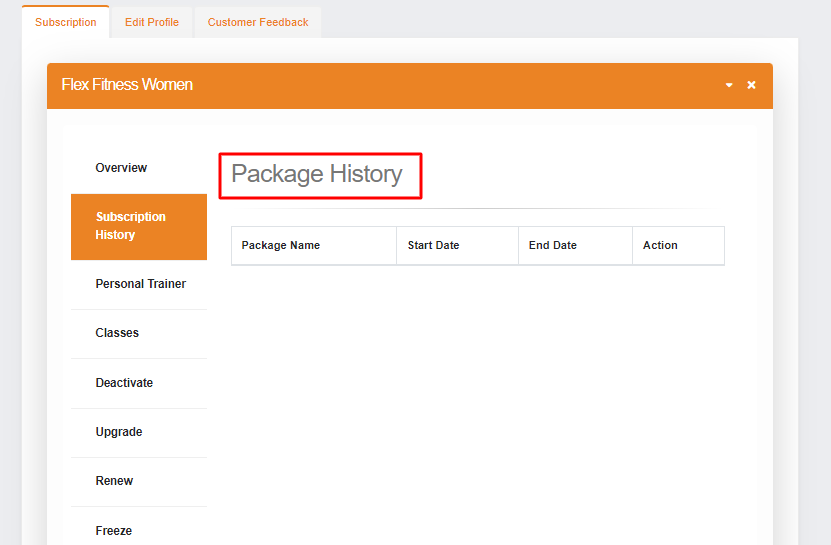
- **Subscription History:** In this section, you can see all the previous subscription detail of the member. It will update when the ongoing subscription will expire, otherwise it will show empty.
[](https://flex.doc.exodevs.com/uploads/images/gallery/2022-05/S19subscription-history.png)
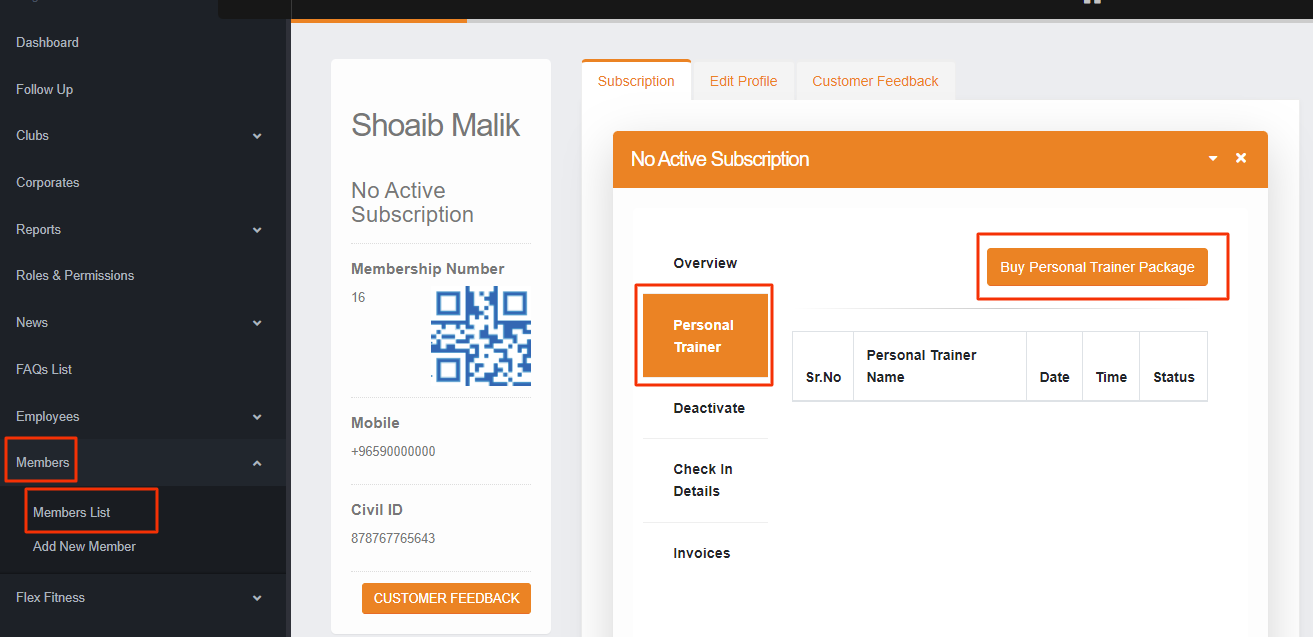
- You can subscribe to the **Personal Trainer** by clicking on **BUY PERSONAL TRAINER PACKAGE** where you will See all existing PT Package. Then click on BUY PACKAGE. If you has an active subscription then you can see only the PT package against that club.
[](https://flex.doc.exodevs.com/uploads/images/gallery/2022-05/pt-package.png)
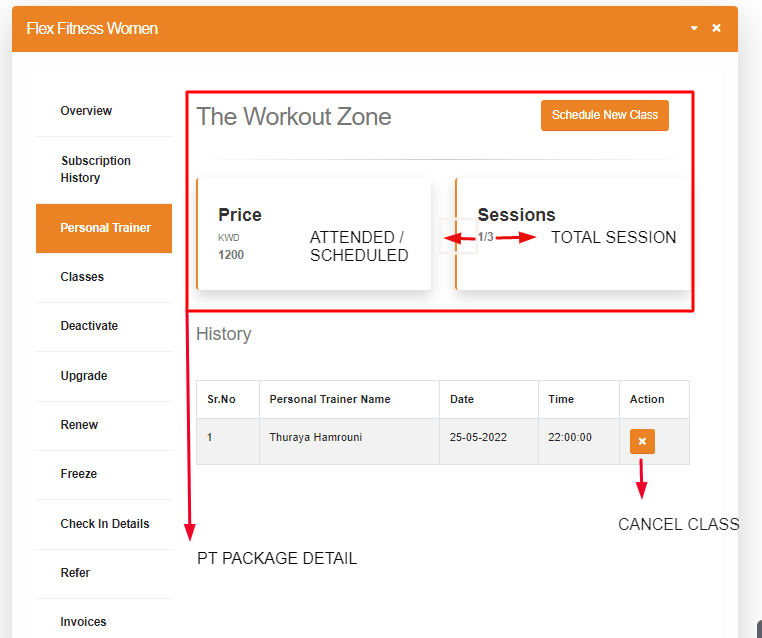
- After subscribing to the PT package you can schedule the PT session by clicking on **Schedule New Class** for the member in the personal trainer package. Where you can select the PT package, Date & Time to schedule the class. Also you can check that how many session did the member attend, Here also you can **cancel** the **scheduled class**
[](https://flex.doc.exodevs.com/uploads/images/gallery/2022-05/pt-package-list.png)
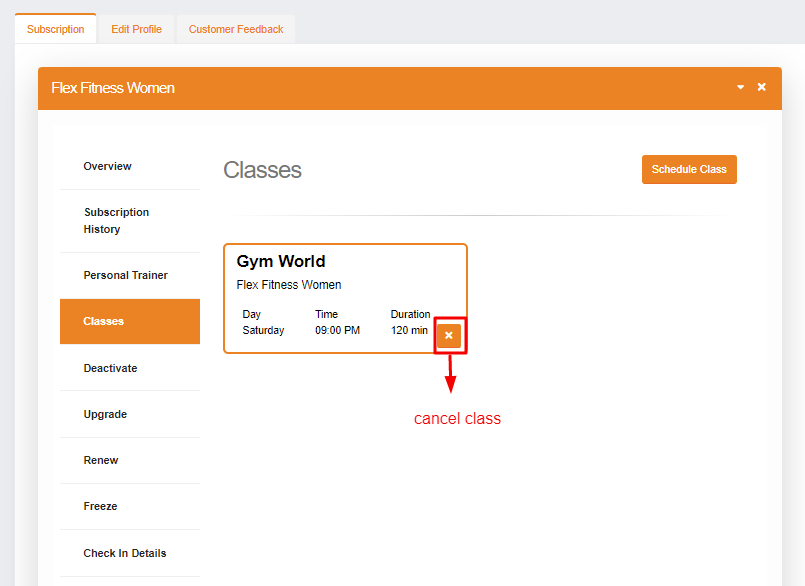
- In More Detail of the member, you can schedule the Classes within the **three days** by clicking on **Schedule Class** from the **CLASS** section. Also you can **cancel** the class before the ****scheduled time.
[](https://flex.doc.exodevs.com/uploads/images/gallery/2022-05/U10classes.png)****
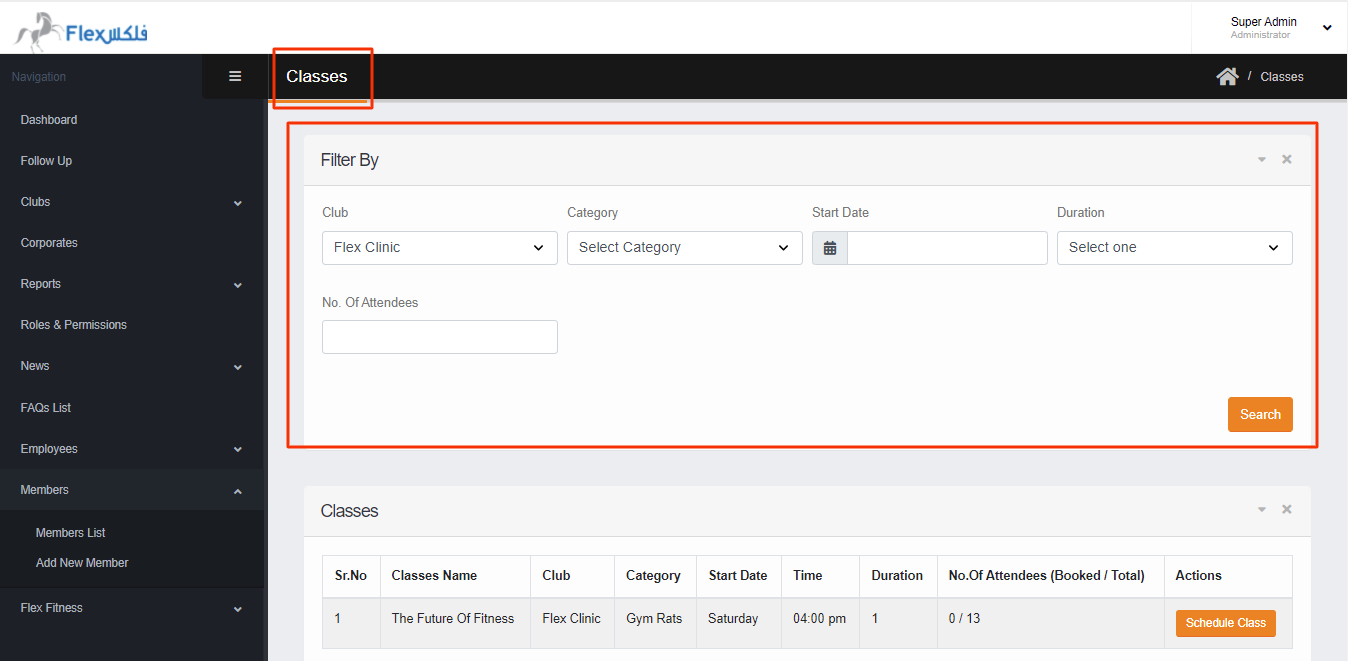
- Also in Classes section --> Schedule Class --> The Class can be searched by following things
1. Search by Club
2. Search by category
3. Search by start date
4. Search by Duration(min)
5. Search by No Of Attendees
[](https://flex.doc.exodevs.com/uploads/images/gallery/2022-05/class-search-filter.png)
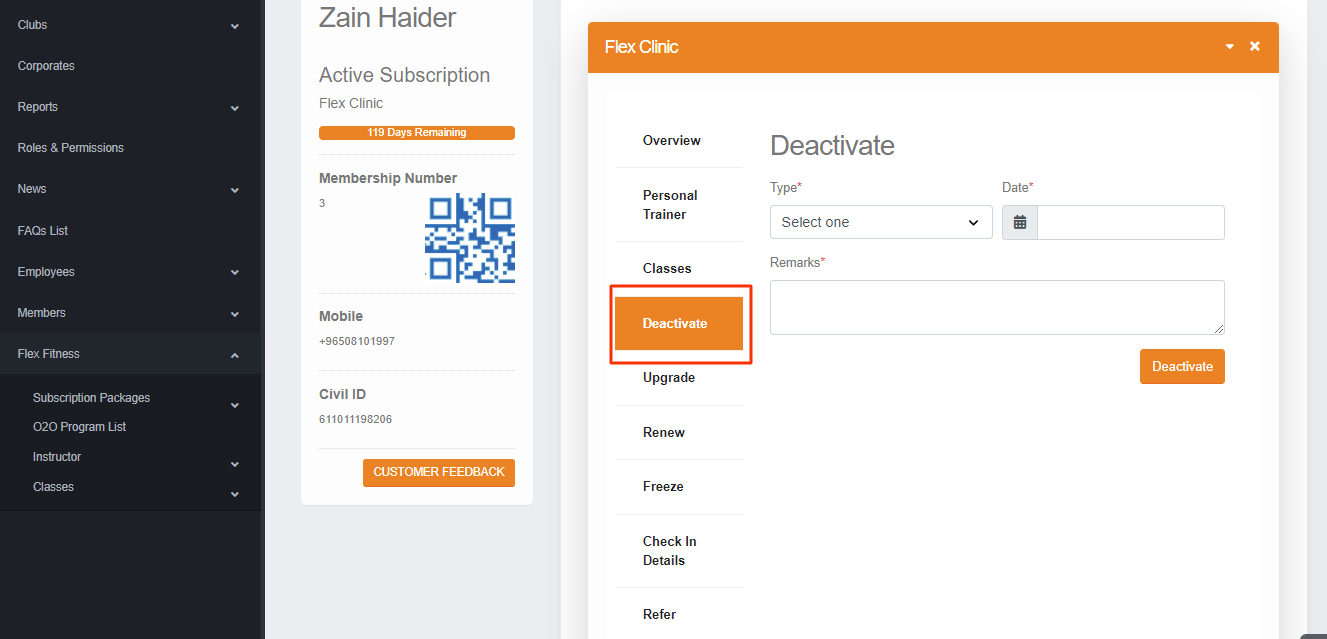
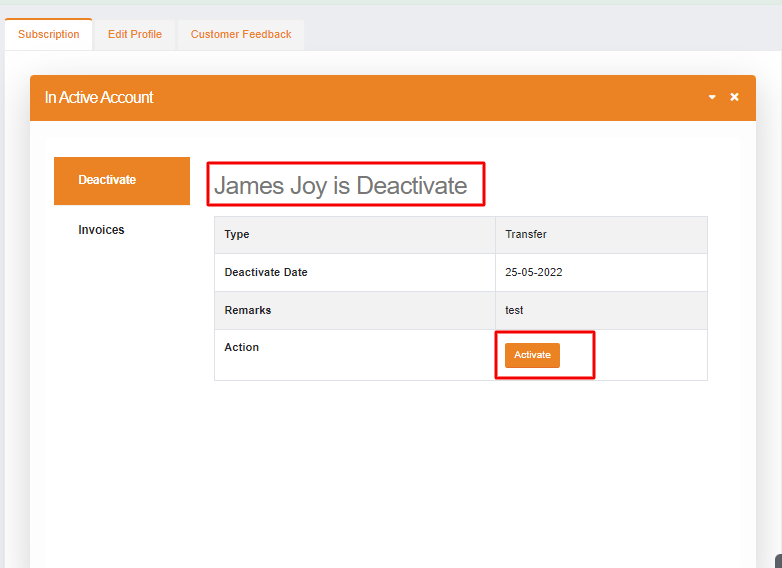
- **Deactivate:** Member can be Deactivated and Activated from the Deactivate option in member detail section. When the user is **deactivated** the other option in **More detail** of the specific member will be hidden until the further action. So if user is deactivated then the member will not be able to **login** in the application or website.
- [](https://flex.doc.exodevs.com/uploads/images/gallery/2022-05/deactivate.png)
[](https://flex.doc.exodevs.com/uploads/images/gallery/2022-05/deactivate-user.png)
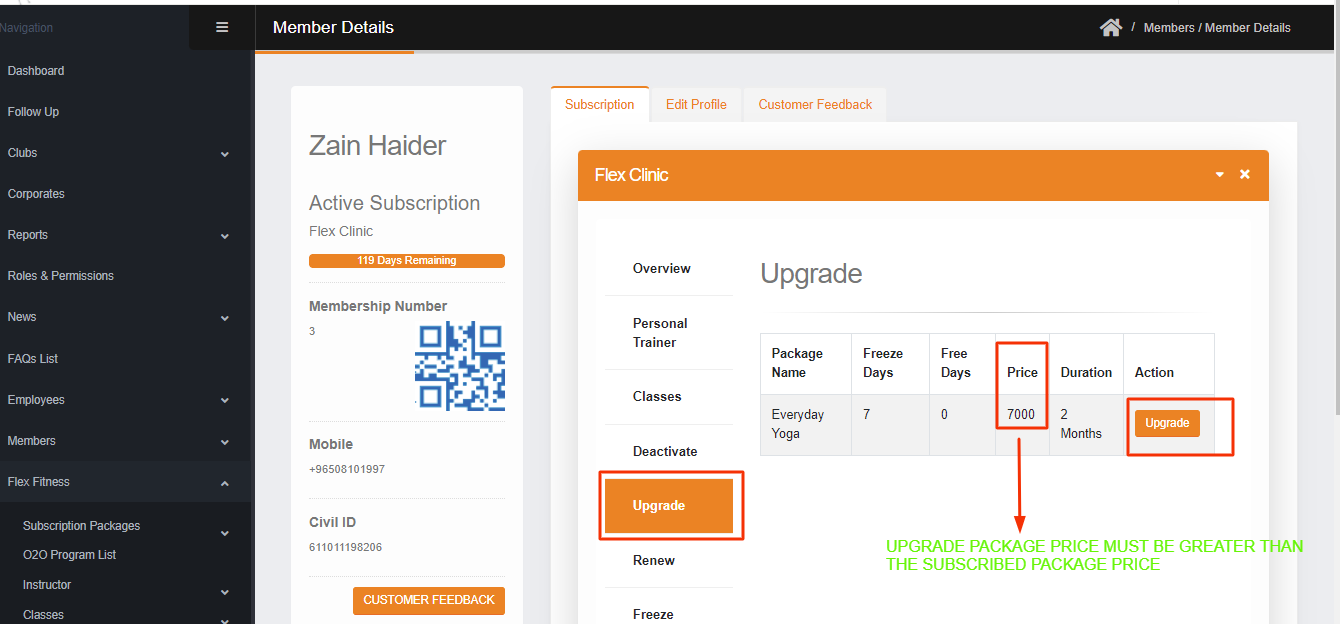
- **Upgrade**: In this section upgrade package will appear, but only those package will appear here which price must be **GREATER** than the subscribed package.
[](https://flex.doc.exodevs.com/uploads/images/gallery/2022-05/upgrade.png)
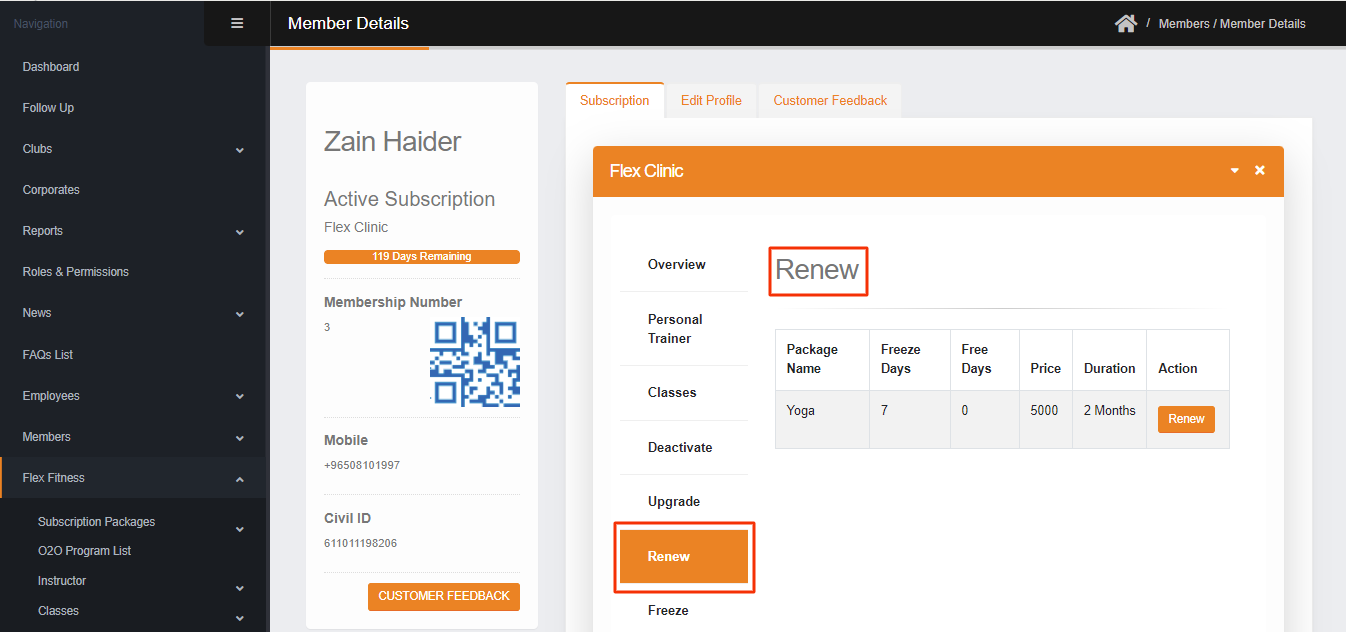
- **Renew**: In this section, the renew package against the subscribed club will appear here.
[](https://flex.doc.exodevs.com/uploads/images/gallery/2022-05/renew.png)
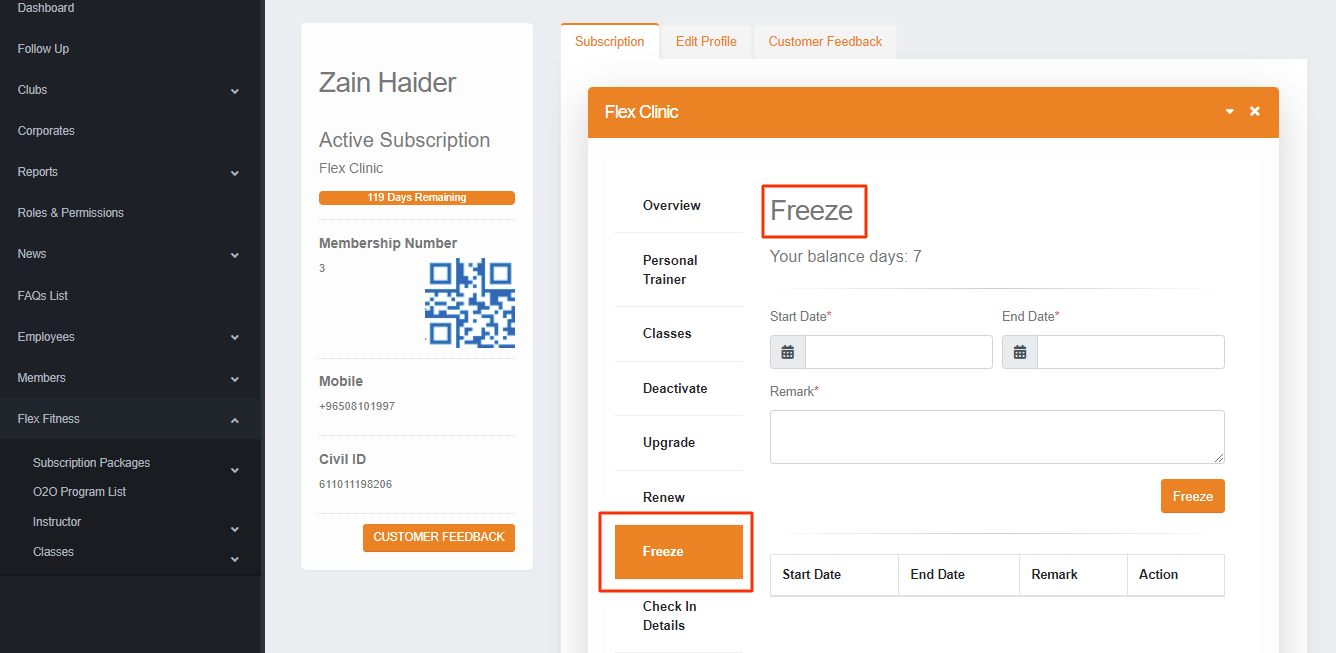
- **Freeze**: In this section, member subscriptions could be **Freeze** and **Unfreeze**. To **Freeze** the subscription you will select the **Start** & **End** date and give remarks then click on the Freeze button. Also, the member can be frozen for a minimum of **7 days**. Except this you can see the history of how many freezing has been taken so far.
[](https://flex.doc.exodevs.com/uploads/images/gallery/2022-05/freeze.png)[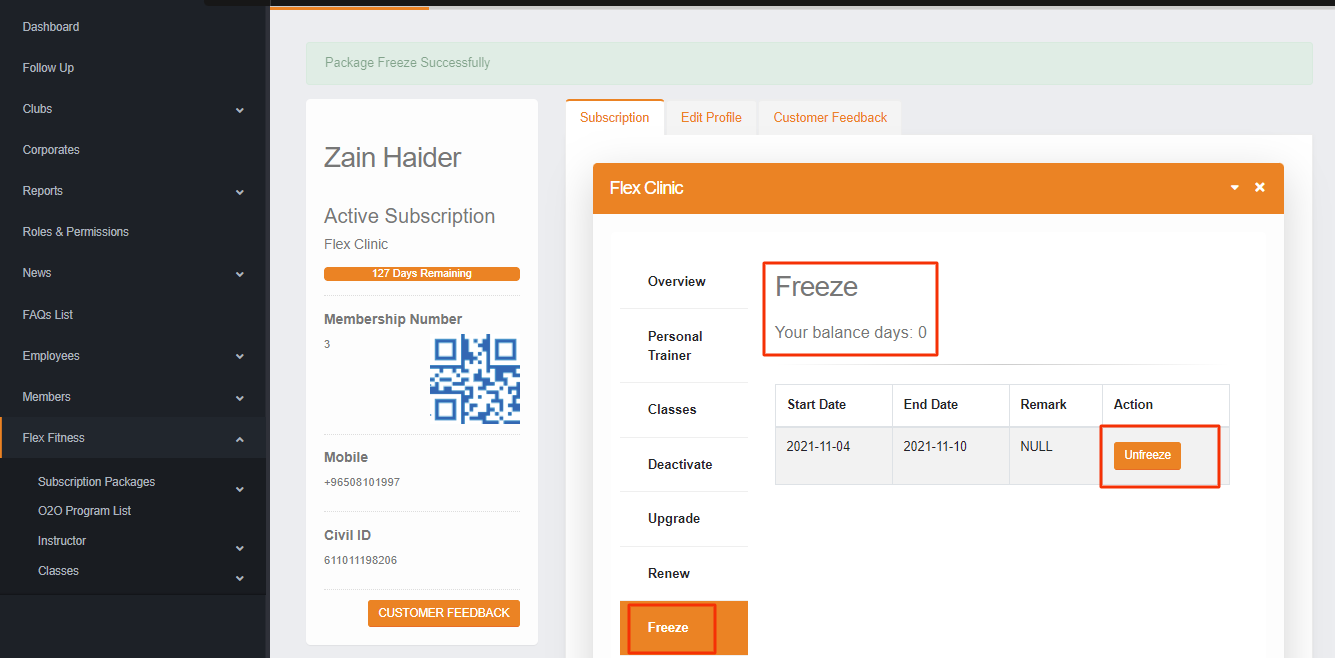](https://flex.doc.exodevs.com/uploads/images/gallery/2022-05/unfrezze.png)
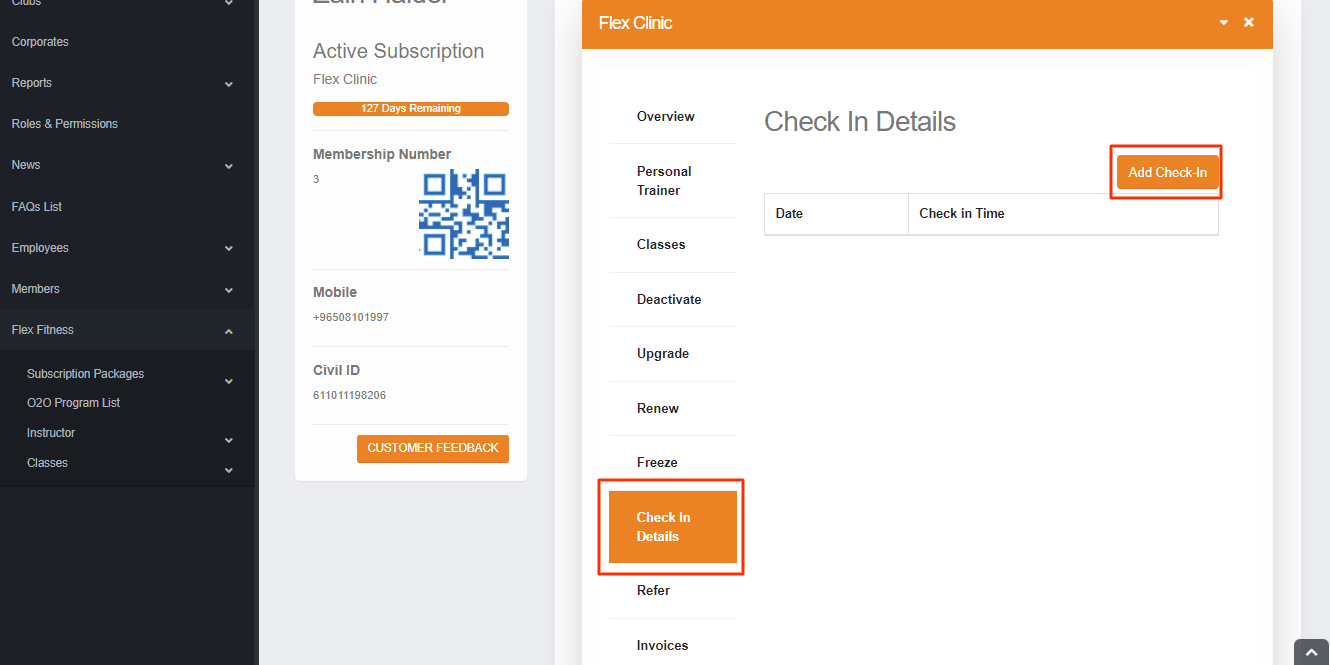
- **Check-in Details:** In this section, you can manually add the **check-in** against the member, the date & time automatically pick from the system to **check-in**. If user has a package in the que and yet it is not activated then on first check-in after the subscription the package will be activated.
[](https://flex.doc.exodevs.com/uploads/images/gallery/2022-05/check-in.png)
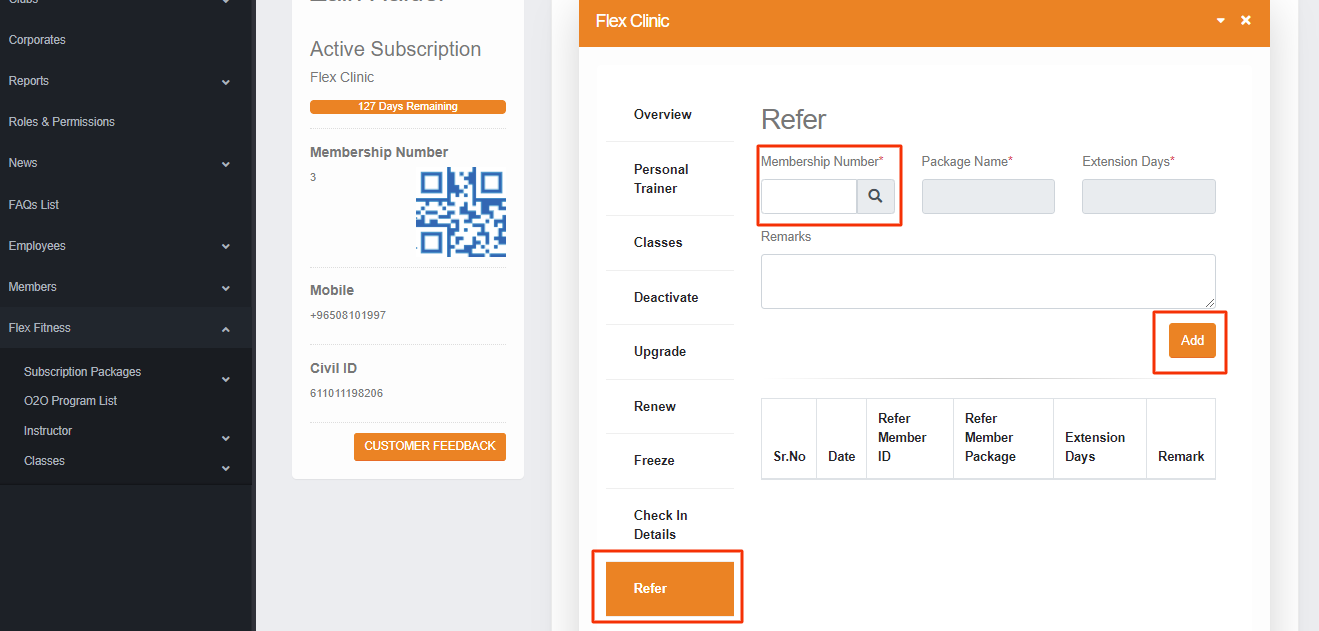
- **Refer**: In this section, when someone refer to the **new user** the **extension days** will be added in the member who **referred**, the same member can’t refer same user multiple time. So when you give the Membership Number and click on the search button if the member has an active package the given detail will automatically filled and the **extension days** be added to the package who referred.
[](https://flex.doc.exodevs.com/uploads/images/gallery/2022-05/refer.png)